
Overview of Lunatic Mouse
Lunatic Mouse is a free Windows utility that enables auto‑clicking, rapid clicking, mouse click repeating, and scheduled clicking for games and other applications.
- Fully customizable click intervals — from milliseconds to several minutes.
- Simultaneous left‑click and right‑click auto‑clicking.
- Start/stop auto‑clicking using either mouse buttons or keyboard keys, all freely assignable.
- Choose between:
– Auto‑Click While Button Is Held (hold‑to‑click mode)
– Toggle Auto‑Clicking with Button Press (press once to start, press again to stop)
Supported OS
Windows 11 / Windows 10
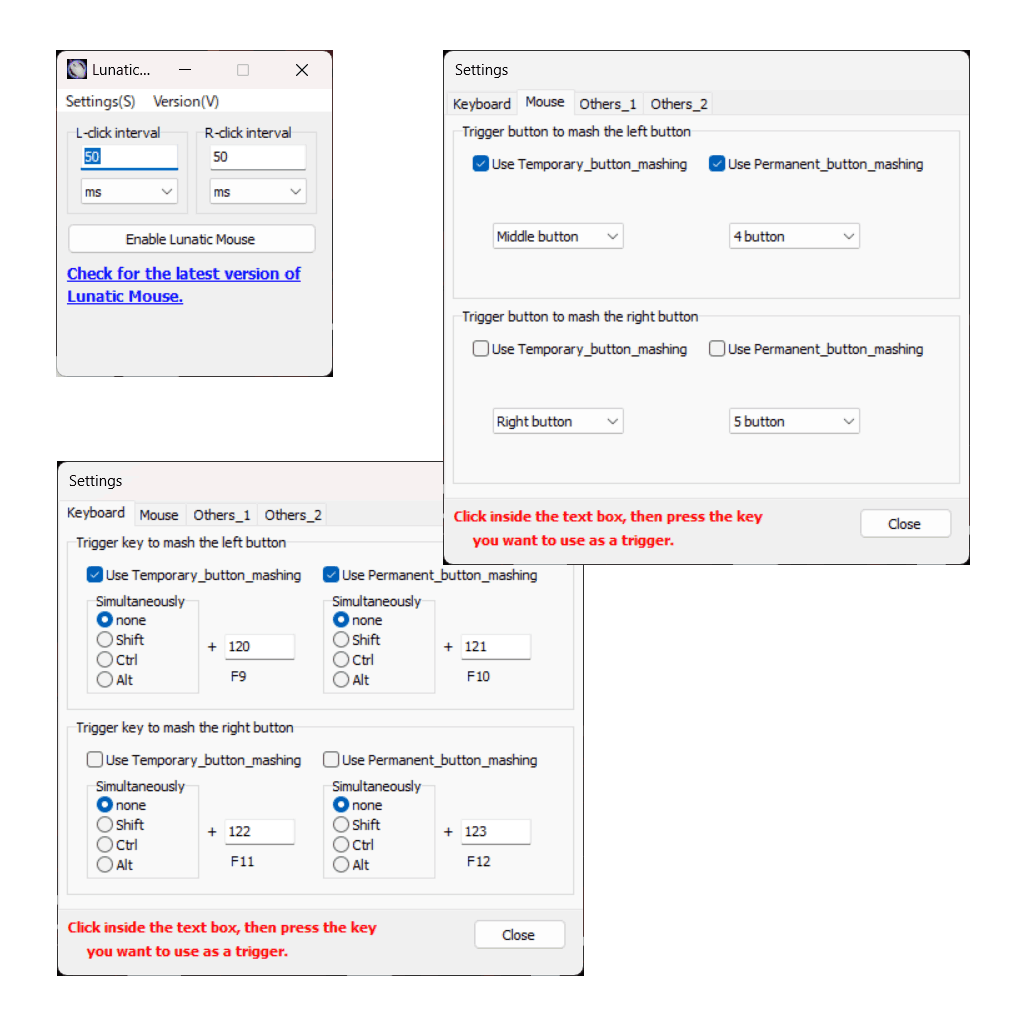
Screenshot
Change Log
ver 3.0.0 (January 1, 2026)
- Improved stability and performance by moving the auto‑clicking process to a separate thread
- Added the ability to pre‑register up to three click positions and automatically move the cursor between them during auto‑clicking (multi‑monitor supported)
- Added an option to automatically stop after a specified number of clicks
- Added an option to slightly randomize the click position for more human‑like behavior (when using fixed click positions)
- Added an option to slightly vary the click interval for more human‑like behavior
- Added an option to return the cursor to its original position after auto‑clicking ends (when using fixed click positions)
- Added the ability to specify how long the mouse button is held down before release during auto‑clicking (Legacy Engine only)
- Improved compatibility by making auto‑clicking behavior closer to standard input
- Separated the left and right auto‑click countdown timers so each can stop independently after its own specified duration
- Improved overall software stability and safety
- Changed the advertisement display method
- Updated Luna.dll to version 6.0.0.0
ver 2.8.0 (September 28, 2025)
- Embedded WAV files into the EXE resources to improve sound effect response
- Changed the application icon
ver 2.7.0 (July 27, 2025)
- Added High-DPI support (fixed blurry display on high-DPI screens)
ver 2.6.0 (June 20, 2025)
- Revised text content (especially the English version)
- Rebuilt using C++Builder 12
ver 1.0.0 (October 12, 2003)
- Initial release
Notes (Terms of Use)
- This software is provided as freeware. It may be used free of charge for personal or commercial purposes.
- Please read and agree to the terms of use before using this software.
- Bug reports and feature requests are welcome via email.
Download
If this software has been helpful to you in any way, I’m truly glad.
If you feel like supporting the project, a small tip or donation would be greatly appreciated and would help motivate future development.
FAQ
Auto‑clicking doesn’t work in some games. Why?
Some games include anti‑cheat systems that block automated input. These systems may prevent cursor movement or auto‑clicking by detecting it as unauthorized behavior.
Additionally, games that rely on DirectInput or RawInput may not accept simulated clicks or cursor movement, which can also prevent auto‑clicking from functioning.
I want to auto‑click at a specific position, but auto‑clicking doesn’t start after the cursor moves.
When using “Auto‑Click While Button Is Held”, and you specify a click position:
- Pressing the assigned button instantly moves the cursor to the target position.
- Auto‑clicking begins only if the window under the cursor at the moment you press the button matches the window located at the target click position.
If these two windows differ, the cursor will move, but auto‑clicking may not start.
Solution
After the cursor moves to the specified position:
- Release the button once,
- Then press it again to start auto‑clicking properly.